NEW Tab (F11)
The NEW (F11) tab is used to start a new transaction in the Jova POS cashier application.
This button is located at the top left of the cashier page and is used to reset the ongoing transaction.
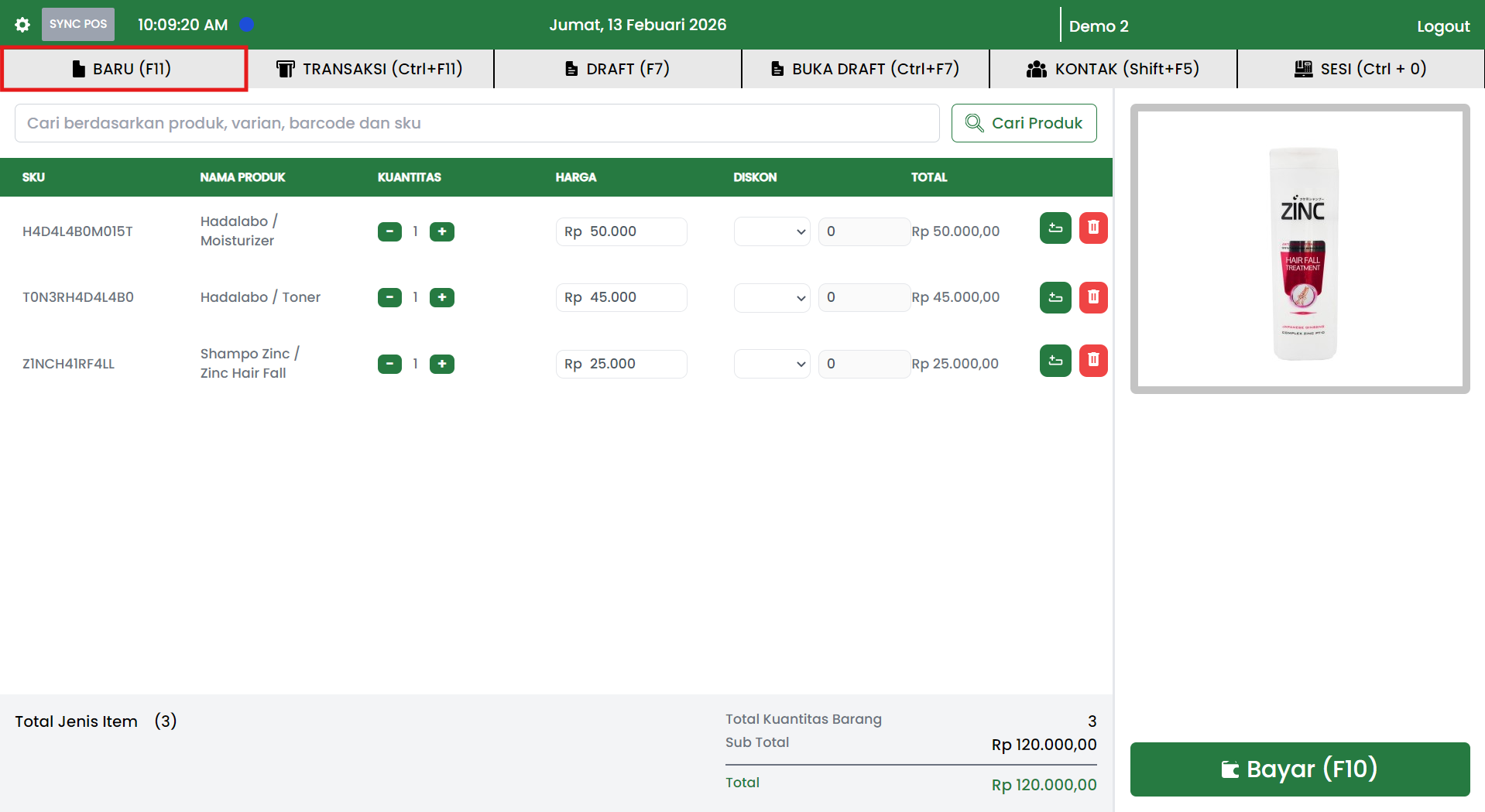
Button Location
The NEW (F11) button is located in the main cashier menu header, aligned with the following menus:
- TRANSACTIONS (Ctrl+F11)
- DRAFT (F7)
- OPEN DRAFT (Ctrl+F7)
- CONTACTS (Shift+F5)
- SESSION (Ctrl+0)
Keyboard shortcut:
F11
Main Functions of the NEW Tab
This button has the following functions:
- Clears all items in the cart
- Cancels the ongoing transaction
- Starts a new transaction from scratch
- Prevents mixing up previous customer transactions
Usage Scenarios
1. If the Cart is Empty
If there are no items in the transaction table:
- The system resets the page directly
- No confirmation popup appears
- The cashier can start a new transaction immediately
2. If There is an Ongoing Transaction
If there are items in the cart and the cashier presses NEW (F11), the system will display a confirmation popup:
Notice: Transaction not completed...
This popup appears to prevent accidental loss of transaction data.
There are 3 action options:
Save to draft (S)
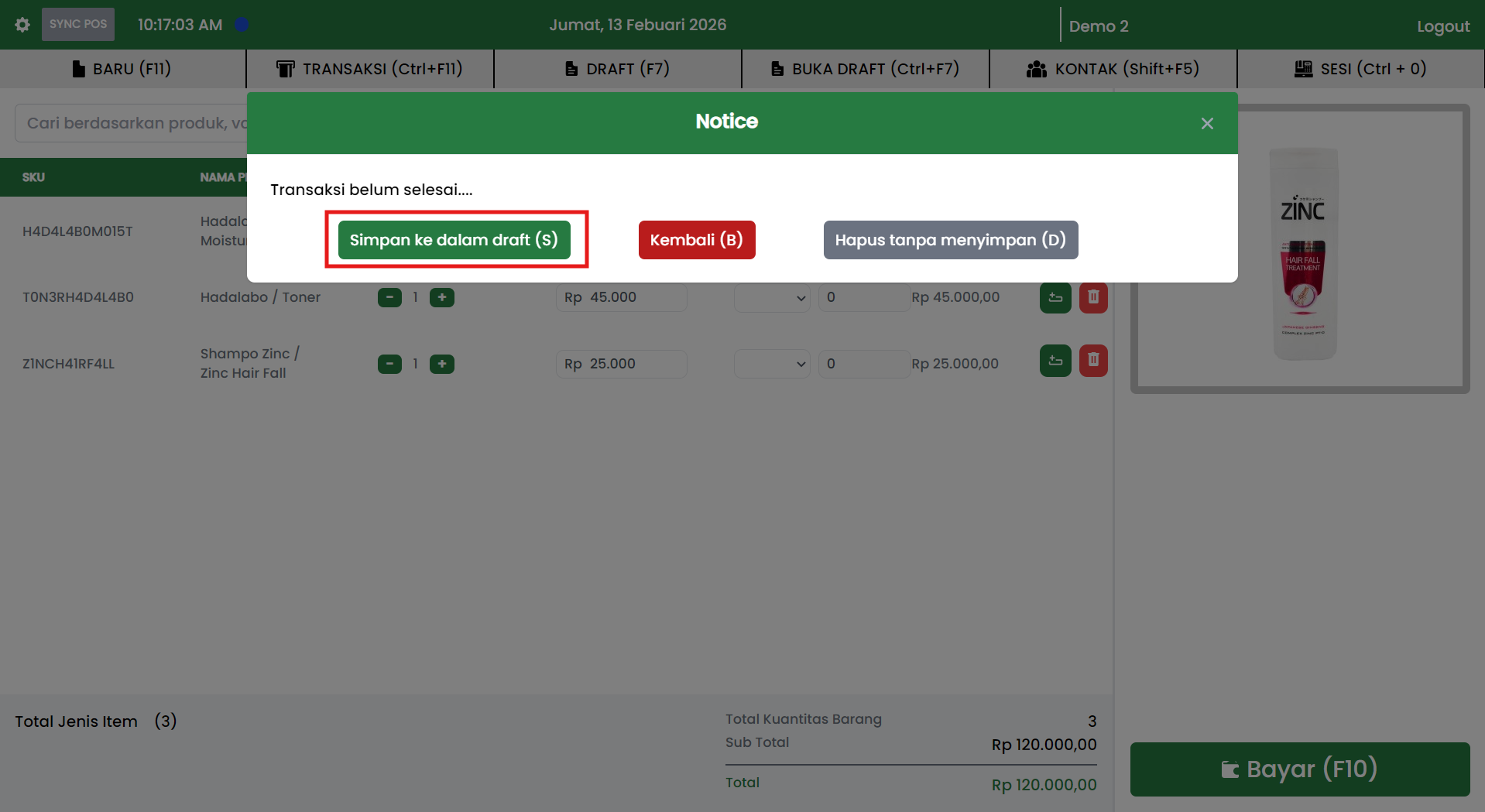
Function:
- Saves the current transaction as a draft
- The transaction can be reopened via the OPEN DRAFT (Ctrl+F7) menu
Shortcut:
S
Used when:
- The customer is not ready to pay
- The transaction needs to be postponed temporarily
- The cashier wants to serve another customer first
Result:
- Transaction saved
- Cashier page reset
- Ready for a new transaction
Back (B)
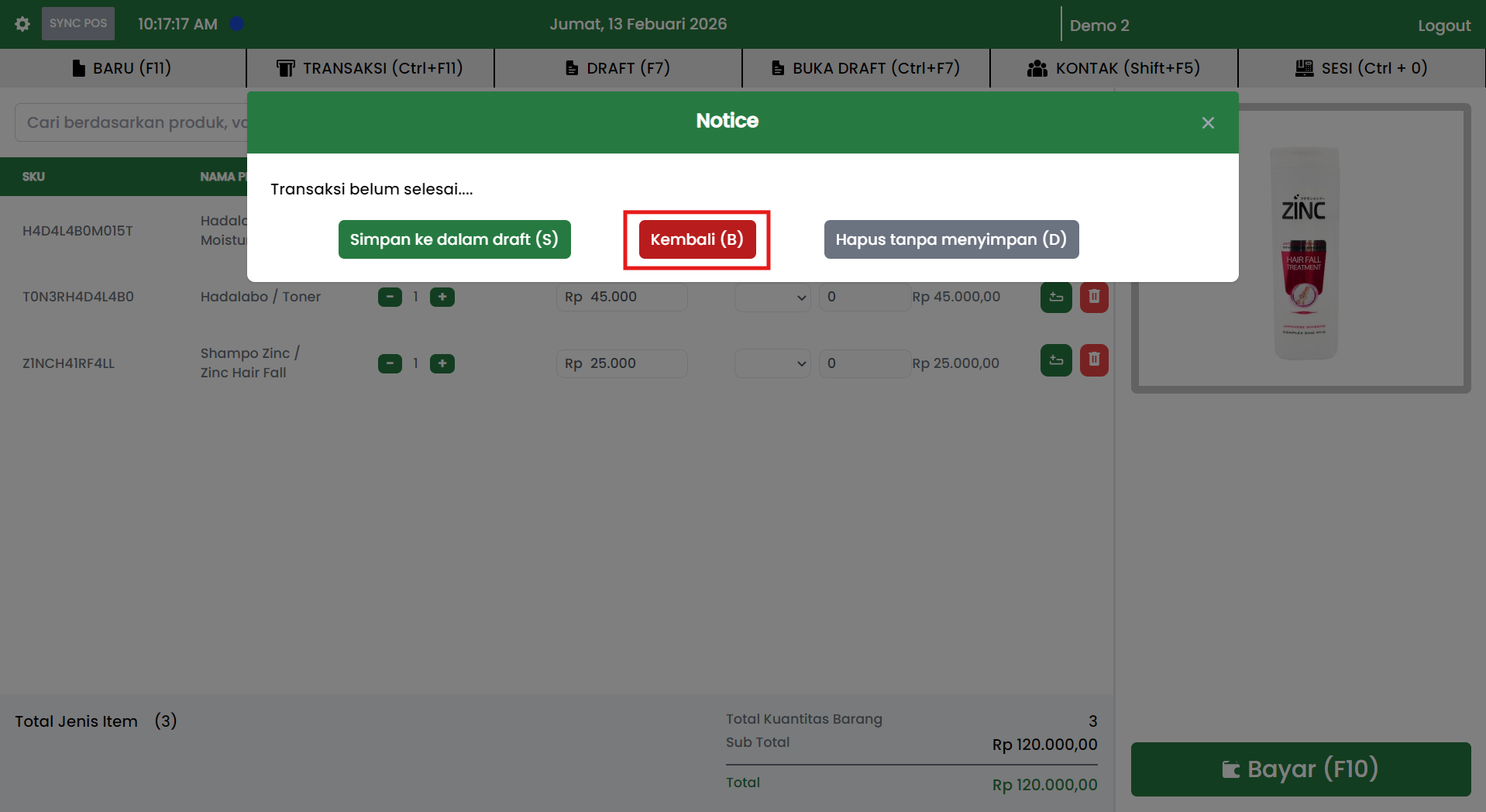
Function:
- Cancels the New Tab action
- Returns to the ongoing transaction
Shortcut:
B
Used when:
- The cashier accidentally pressed F11
- The transaction still needs to be continued
Result:
- Popup closed
- Transaction remains active
Delete without saving (D)
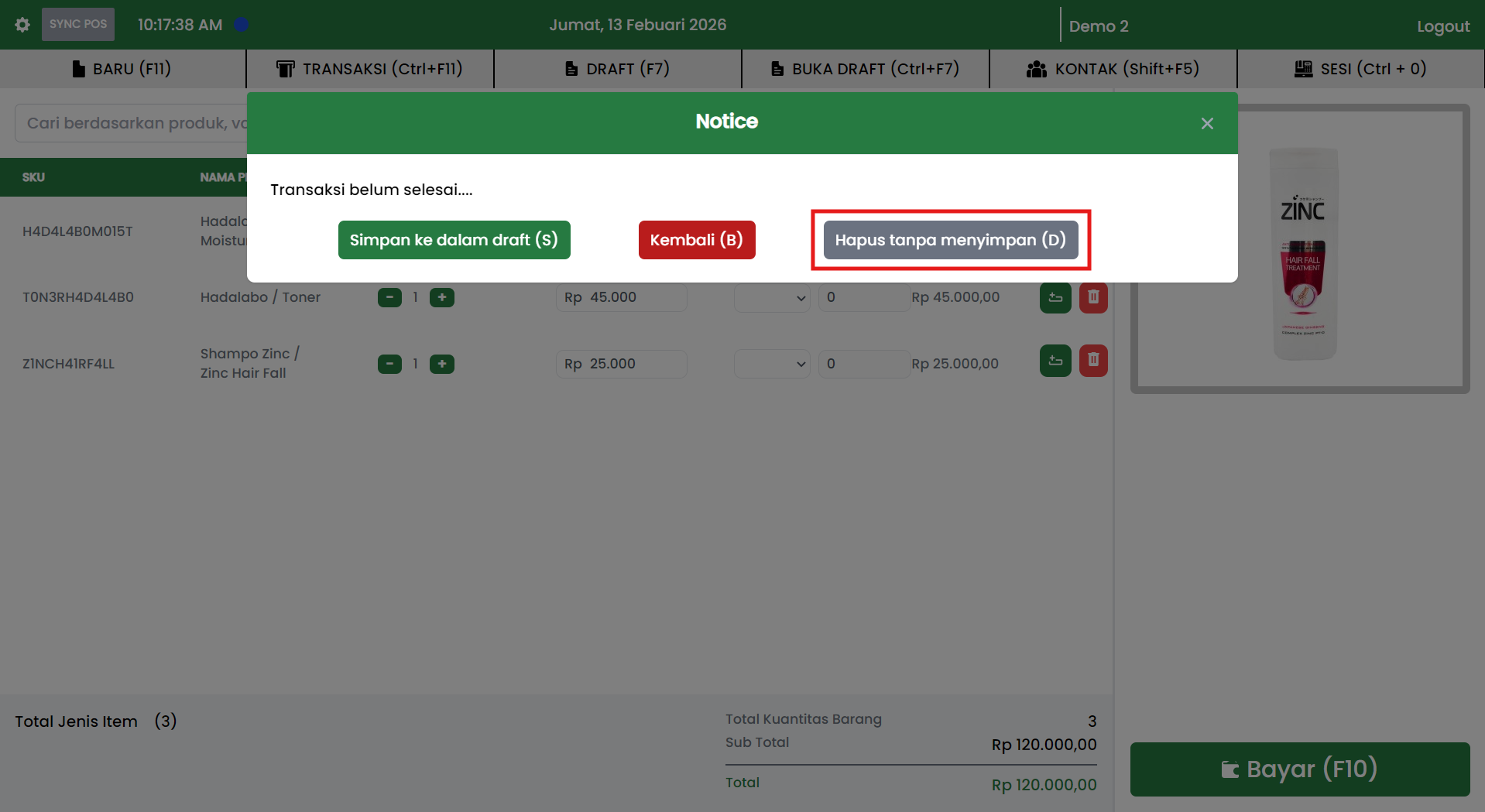
Function:
- Deletes the entire ongoing transaction
- Does not save to draft
- Cannot be undone
Shortcut:
D
WARNING:
Transaction data will be permanently lost and cannot be recovered.
Used when:
- The customer cancels the purchase
- The transaction input is completely wrong and needs a restart
Result:
- Transaction deleted
- Cashier page reset
- Ready for a new transaction
System Behavior Summary
| Condition | Action | Result |
|---|---|---|
| Empty cart | Press F11 | Direct reset |
| Has transaction | Save Draft | Saved and reset |
| Has transaction | Back | Transaction remains |
| Has transaction | Delete | Deleted and reset |
Best Practices for Cashiers
To avoid mistakes:
- Use Save to Draft if the transaction is not yet complete.
- Use Delete without saving only if the transaction is truly canceled.
- Don't press Delete without confirming the customer is not purchasing.
- Make sure there is no active transaction before logging out or closing the application.
Efficiency Tips
To speed up operations:
- Use the F11 shortcut to open a new transaction.
- Use the S / B / D keyboard keys when the popup appears.
- Minimize mouse usage for faster service.
Important Notes
The NEW (F11) tab is a transaction protection feature.
Its purpose:
- Prevents data loss
- Reduces cashier errors
- Maintains transaction consistency
Make sure every cashier understands the impact of each option in the confirmation popup.